How to install the Amiga Workbench theme on your PlayStation 3

The PlayStation 3 still has a few tricks left in it. One of the simplest is also one many owners forget about: custom themes. You don't need to buy anything from the PlayStation Store. You don't need to modify the console. You don't even need special software. If you've got a USB stick and a compatible theme file, you can change the look of the PS3 menu in a few minutes. That makes it a neat upgrade for anyone still using a PS3 for games, Blu-ray discs, digital media or the occasional trip back through an old library. The XMB interface is still fast and tidy, but after years of seeing the same icons and backgrounds, it can feel a bit too familiar. A custom theme gives it a quick visual reset. And yes, the PS3 supports this officially. The feature is built into the system menu. You just need to put the right file in the right folder.

The PlayStation 3 still has a few tricks left in it. One of the simplest is also one many owners forget about: custom themes. You don’t need to buy anything from the PlayStation Store. You don’t need to modify the console. You don’t even need special software. If you’ve got a USB stick and a compatible theme file, you can change the look of the PS3 menu in a few minutes. That makes it a neat upgrade for anyone still using a PS3 for games, Blu-ray discs, digital media or the occasional trip back through an old library. The XMB interface is still fast and tidy, but after years of seeing the same icons and backgrounds, it can feel a bit too familiar. A custom theme gives it a quick visual reset. And yes, the PS3 supports this officially. The feature is built into the system menu. You just need to put the right file in the right folder.

Why custom themes are still worth using

The PS3’s XMB menu has aged better than a lot of console interfaces. It’s clean, simple and easy to use with a controller. Sony got the basics right. But that doesn’t mean you have to stick with the default look forever.

A custom PS3 theme can change the background, icons, colour accents and general feel of the menu. Some themes keep things subtle, with cleaner icons and simple wallpapers. Others go further and make the console look like a completely different system when you turn it on.

That’s the appeal. You’re not changing how the PS3 works. You’re just changing what you see every time you use it.

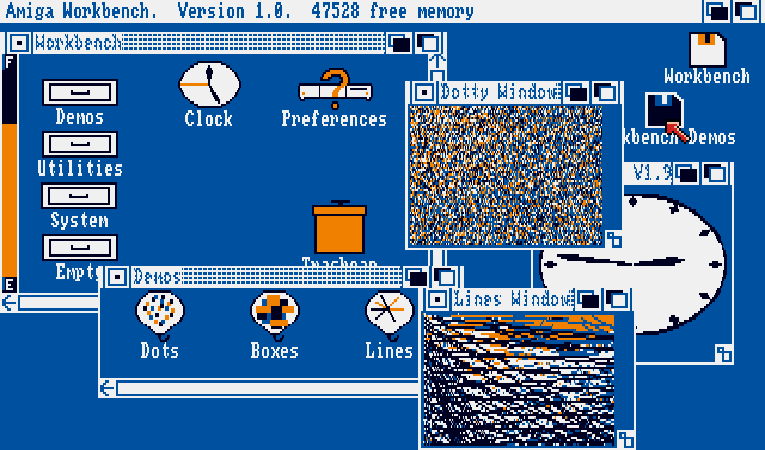
One good example is an Amiga Workbench-style theme. It gives the PS3 menu a computer-like look, with a design inspired by the classic Amiga desktop. It’s not flashy. It’s not trying too hard. It simply gives the console a different personality without getting in the way. For an older console, that kind of change can make a surprising difference.

What you need

The shopping list is short. In fact, there probably isn’t one. You need a USB stick or an external hard drive. A small USB stick is fine, because PS3 theme files are usually tiny. You also need a theme file in the correct format. PS3 themes normally use the .p3t file extension. The USB stick should be formatted in a way the PS3 can read. FAT32 is usually the safest choice. If your console doesn’t detect the drive, the format is often the first thing to check.

The folder layout matters too. The PS3 expects theme files to sit in a specific place. On the USB stick, create a folder called PS3. Inside that, create another folder called THEME. Put the .p3t file inside the THEME folder.

How to install a PS3 custom theme

Plug the USB stick into the PlayStation 3. Then open the main menu and go to Settings. From there, choose Theme Settings, then Theme. Select Install. The PS3 should show the USB device. Open it, pick the theme file and let the console install it.

That’s it. Once installed, go back to the Theme menu and select the new theme from the list. The PS3 applies it through the standard system settings, so there’s no extra tool or workaround involved. This is one of the better things about the process. It feels like a normal console feature because it is one. You copy the file, plug in the USB stick and apply the theme from the menu. If you don’t like the result, you can switch back just as easily.

What actually changes

A PS3 theme can change more than the wallpaper. The better ones replace the XMB icons as well, so the whole menu feels more consistent. That includes sections such as Game, Video, Music, Settings, Network and Users. When those icons match the background and overall style, the interface feels much less like a quick skin and more like a proper redesign.

Some themes are minimal. Some lean into older computer styles. Some use game-inspired artwork. The best ones understand the PS3 menu and work with it, rather than fighting it.

That matters because the XMB is built around clarity. You move left and right between categories, then up and down through options. If a theme makes the icons hard to read or the background too busy, it gets annoying quickly. A good theme should look different without making the console harder to use.

Pick a theme that works on a TV

Screenshots can be misleading. A theme might look great on a laptop screen but feel messy on a television from across the room. That’s why contrast matters. Icons need to stand out. Text needs to stay readable. Backgrounds should add style without swallowing the menu.

Bright images, heavy patterns and low-contrast icons can look fun for five minutes, then become a chore. Simple designs often work better on the PS3 because the interface already has its own structure.

Before you settle on a theme, try it across a few menu sections. Check Game, Settings, Video and Network. Make sure the icons are clear. Make sure the background doesn’t make text harder to read. Make sure it still feels quick to use. The goal is simple: make the console look better, not busier.

The Amiga Workbench look

The Amiga Workbench-style theme is a good example of how much a theme can change the feel of the PS3 without touching the system itself. Instead of a glossy console look, it gives the XMB a flatter, desktop-style appearance. The icons feel more like something from an old computer interface than a living-room games machine. On the PS3, that works better than you might expect.

The reason is simple. The XMB is already icon-based. It doesn’t need a complete layout change to feel different. Swap the icons, adjust the background and the whole system takes on a new tone. The Amiga-inspired look also avoids one common problem with custom themes: clutter. It has a clear style, but it doesn’t bury the menu under artwork. That makes it usable, not just interesting. For users who want something different from the usual game wallpaper, it’s a strong choice.

No store, no payment, no fuss

Custom themes are a useful reminder that not every console upgrade needs to involve a store page. The PS3 already gives you the option. You just need to use it. There’s also no commitment. You can install several themes and switch between them whenever you want. If one doesn’t suit your setup, choose another. If you prefer the default look, go back to it.

Nothing permanent happens. The console keeps working as normal. That makes custom themes one of the easiest ways to refresh a PS3. You don’t improve performance. You don’t add new features. But you do change the part of the console you see every time it starts. For a machine that may still be sitting under the TV, that’s enough to make it feel a little less tired.

A small change that still makes sense

The PlayStation 3 is old enough now that most people aren’t looking for major upgrades. They just want it to work, look decent and stay useful. Custom themes fit that perfectly. They’re free, easy to install and simple to remove. A USB stick, a PS3 folder, a THEME folder and a .p3t file are all you need.

The XMB still does its job. With the right theme, it can look sharper, cleaner or just more interesting than it has in years. So if your PS3 is still connected, give the interface a change. It takes minutes, costs nothing and makes the console feel a bit more personal without overcomplicating anything.

Spread the love
error: